
Slow WiFi at Home? How to Fix It, and How to Choose the Right Router
Slow WiFi at home? Try these free fixes first, then learn 2.4 vs 5 GHz, WiFi 5 vs 6, mesh vs extenders, CAT6 cables and how to choose the right WiFi router.
On this page
You are paying for a decent internet package, yet videos buffer in the bedroom and calls drop in the kitchen. Before you call your ISP or buy anything, know this: slow WiFi is often a placement or settings problem, not a slow connection. Plenty of homes can fix it without spending a rupee.
Our family has run its shop in Burewala since the 1960s, and home internet is now one of the things customers ask us about most. This guide starts with the free fixes, then explains what to look for if you do need a new WiFi router, a cable or backup power.
First, find out what is actually slow
Run a speed test on your phone while standing right next to the router, then run it again in the room where WiFi feels slow.
Slow next to the router as well? The problem is probably the line or the package. Restart the ISP device, and if it stays slow, contact your ISP.
Fast near the router, slow far away? That is a WiFi coverage problem. The rest of this guide is for you.
Free fixes to try before you buy anything
Work through these in order. Test again after each step so you know what helped.
Restart everything properly. Switch off the ISP device (the fibre ONT or modem) and your router, wait about a minute, then switch on the ISP device first and the router once its lights settle. This clears many hang-ups.
Move the router. Put it in a central spot, at shelf height or higher, in the open. Keep it away from thick walls, steel almirahs, mirrors, fish tanks and the microwave.
Point the antennas sensibly. If your router has two antennas, try one straight up and one sideways.
Use the right band. If your router is dual-band, connect phones and laptops near the router to the 5 GHz network, and leave far-away devices on 2.4 GHz (more on this below).
Change the WiFi channel. In busy streets, neighbours' networks overlap with yours. In the router settings, try a different 2.4 GHz channel (1, 6 or 11 are the usual choices) or set it to auto, then retest.
Update the firmware. Most routers have a firmware or "system upgrade" option in the settings page. Updates can fix bugs and security holes.
Change the default passwords. Change both the WiFi password and the router's admin login.
Check how many devices are connected. Every phone, TV and camera shares the same connection. Pause big downloads or phone backups while someone is on a video call.
If coverage is still poor after all this, it is time to look at hardware.
2.4 GHz vs 5 GHz, in plain words
Think of the two bands as two roads. 2.4 GHz is the long road that reaches far but gets crowded. 5 GHz is the fast road that is short and does not pass through walls as well.
| 2.4 GHz | 5 GHz | |
|---|---|---|
| Range | Longer, better through walls | Shorter, weakens through walls and floors |
| Speed | Lower | Higher |
| Interference | More (neighbours, microwaves, Bluetooth) | Less |
| Best for | Far rooms, cameras, smart devices | Streaming, gaming, video calls near the router |
A dual-band router gives you both. Single-band (2.4 GHz only) routers suit small homes and basic browsing, but struggle more in crowded areas.
WiFi 5 vs WiFi 6: what matters at home
WiFi 5 (also called 802.11ac) and WiFi 6 (802.11ax) are standards. WiFi 6 handles many connected devices more efficiently and can be faster, but only if your phones and laptops also support it. Many older and budget devices do not.
For a typical Pakistani home, the honest answer is:
If your package is modest and you have a handful of devices, a good dual-band WiFi 5 router placed well is usually enough.
If the house has many devices at once, or a higher-speed fibre package, WiFi 6 is worth considering, especially if your newer phones support it.
A WiFi 6 router will not make a slow internet package faster. It improves how WiFi shares the speed you already have.
Single router, mesh, extender or access point?
One good router
For a small house or flat, one well-placed dual-band router is often all you need.
Range extender
An extender picks up your existing WiFi and repeats it. It is cheap and easy, but it usually cuts the speed on the far side, and devices sometimes stick to the weaker signal. Place it halfway between the router and the dead zone, not in the dead zone itself.
Mesh system
Mesh uses two or more units that work as one network with one name, and your phone moves between them smoothly. It suits larger or multi-storey houses.
Access point or second router on a cable
If you can run a CAT6 cable to the far room or upper floor, a second router set up as an access point gives you full-strength WiFi there. This is often the best performance for the money in brick-and-concrete houses, because the cable carries the speed through the walls the WiFi cannot.
When a CAT6 cable beats WiFi
A cable is more stable than WiFi. Wire anything that stays in one place:
Smart TVs and Android boxes, so streaming does not buffer.
Desktop PCs, for work and large downloads.
Gaming consoles, where steady ping matters most.
Buying the right cable
Choose CAT6 for new runs. It is suited to gigabit home networks and is a sensible long-term choice.
Measure the route, not the straight-line distance, then add a little extra for corners. Our CAT6 LAN cables come in ready-made patch lengths from short to long, plus cable for longer custom runs.
Running out of ports on your router? A small gigabit switch, such as a 5-port or 8-port model, adds more wired connections.
How home internet is set up in Pakistan
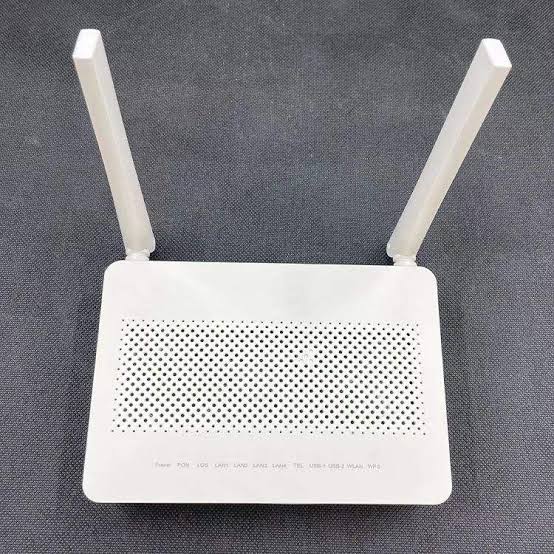
With most fibre connections, the ISP installs an ONT (a fibre modem, often with WiFi built in) where the line enters the house; other connection types use a DSL or cable modem. Setups from providers such as PTCL, StormFiber and Nayatel broadly follow this pattern, though details vary by provider and package.
You have two common options:
Use the ISP device's own WiFi. Fine if it is dual-band and placed centrally.
Add your own WiFi router on a LAN cable from the ISP device, so you can place it better and keep your settings if you change ISP.
Do not reset an ISP device unless you know your connection details, and if you plan to replace a fibre ONT, check with your ISP first that it will accept it. We stock fibre routers including dual-band models.
Keeping WiFi on during load-shedding
Your router and ONT have no battery. When the light goes, the WiFi goes, even if the ISP's line is still working.
A small DC mini UPS made for routers is the simple fix. It sits between the adapters and the devices and keeps them running through outages. Check:
The voltage your router and ONT need, printed on their adapters (commonly 12V or 9V).
That the UPS outputs match those voltages, with enough outputs for both devices.
That the connector size fits your devices.
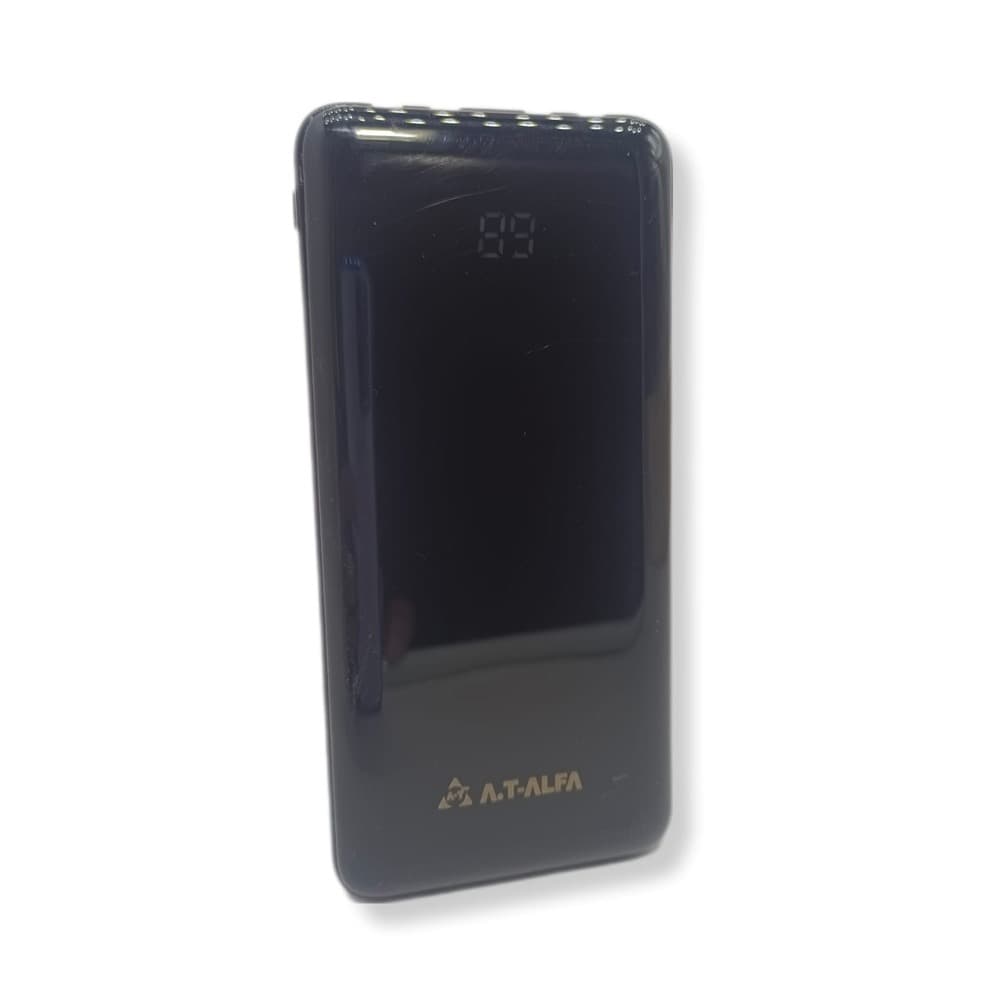
Another option is a 12V router power bank, such as our Power Bank Modem 12V, which powers a 12V router or ONT through an outage. Check the same three points before you buy.
If your home inverter or UPS already covers the router's socket, you may not need one at all. Browse our UPS & power section, or send us the label on your router's adapter on WhatsApp and we will tell you what fits.
Router buying checklist
Before you buy a WiFi router, run through this:
Dual-band (2.4 GHz + 5 GHz), unless it is for a very small space or basic use.
Gigabit LAN ports if your package is fast or you plan to use cables.
WiFi 5 or WiFi 6 chosen to match your devices and budget, not just the box.
WPA2 or WPA3 security supported.
Guest network option.
Easy setup through an app or simple web page.
Access point / repeater mode, if you might use it as a second router later.
Power supply voltage noted, for choosing a mini UPS.
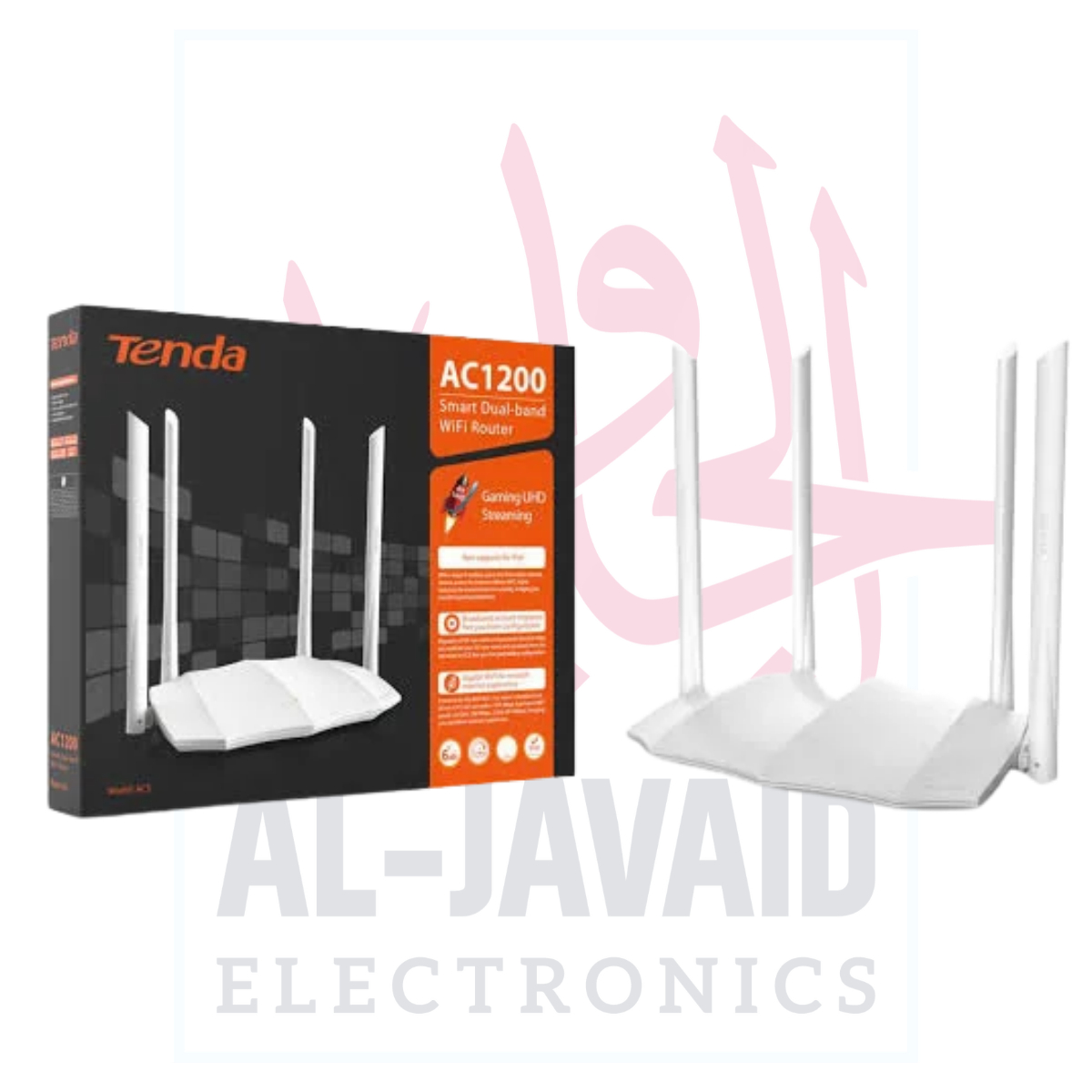
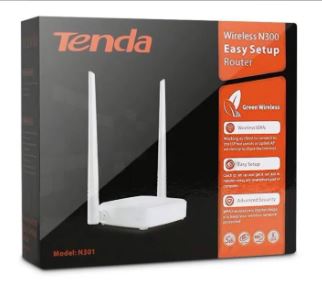
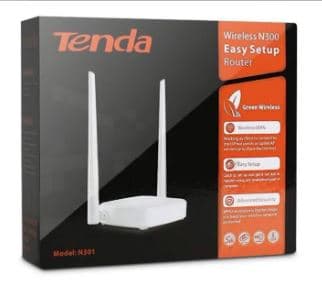
For most homes, a dual-band model like the Tenda AC1200 is a solid all-rounder. For a small flat, shop or a basic second access point, a single-band model like the Tenda N301 can do the job.
Basic WiFi security
Use WPA2 or WPA3 encryption. Never leave the network open, and avoid old WEP settings.
Pick a long WiFi password that is not your phone number or the house number.
Change the router's admin password, not just the WiFi password.
Turn on a guest network for visitors, so they never get your main password.
Turn off WPS if you do not use it.
Frequently asked questions
Why is my WiFi slow only in some rooms?
Distance and walls weaken WiFi, especially 5 GHz. Move the router to a more central, raised spot first. If that is not enough, use a cabled access point, a mesh system or an extender for the far rooms.
Do I need WiFi 6?
Not always. It helps most in homes with many devices and newer phones or laptops that support it. A good dual-band WiFi 5 router is still fine for many households.
Is an extender or mesh better?
Mesh usually gives a smoother, faster experience in bigger houses, but costs more. An extender is a budget fix for one weak spot. If you can run a cable, a second router as an access point often beats both.
How long can a CAT6 cable be?
Ethernet is designed for runs of up to 100 metres, so normal home lengths are well within range. Use a good quality cable and avoid sharp bends or crushing it under doors.
Will a mini UPS work with my ISP's ONT?
Usually, if the UPS output voltage and connector match the ONT's adapter. Check the label on the adapter, or send us a photo and we will confirm.
Need help choosing?
Start with the free fixes. If you do buy, match the hardware to your house and devices, not the biggest number on the box.
Browse our network and router range, with delivery across Pakistan, free delivery over Rs 5,000 and cash on delivery. If something arrives faulty, send us your unboxing video and order number on WhatsApp at 0300 7594322 within 3 days (see our return and replacement policy). Not sure what suits your home? Message or call us on WhatsApp at 0304 4403336 and our team will help you pick.